n8n Error Workflow for AI Agent Tool Failures (Why the Agent Stays Green)
The n8n Error Trigger is simple. When a linked workflow fails, it starts. The catch is what n8n counts as a failure.
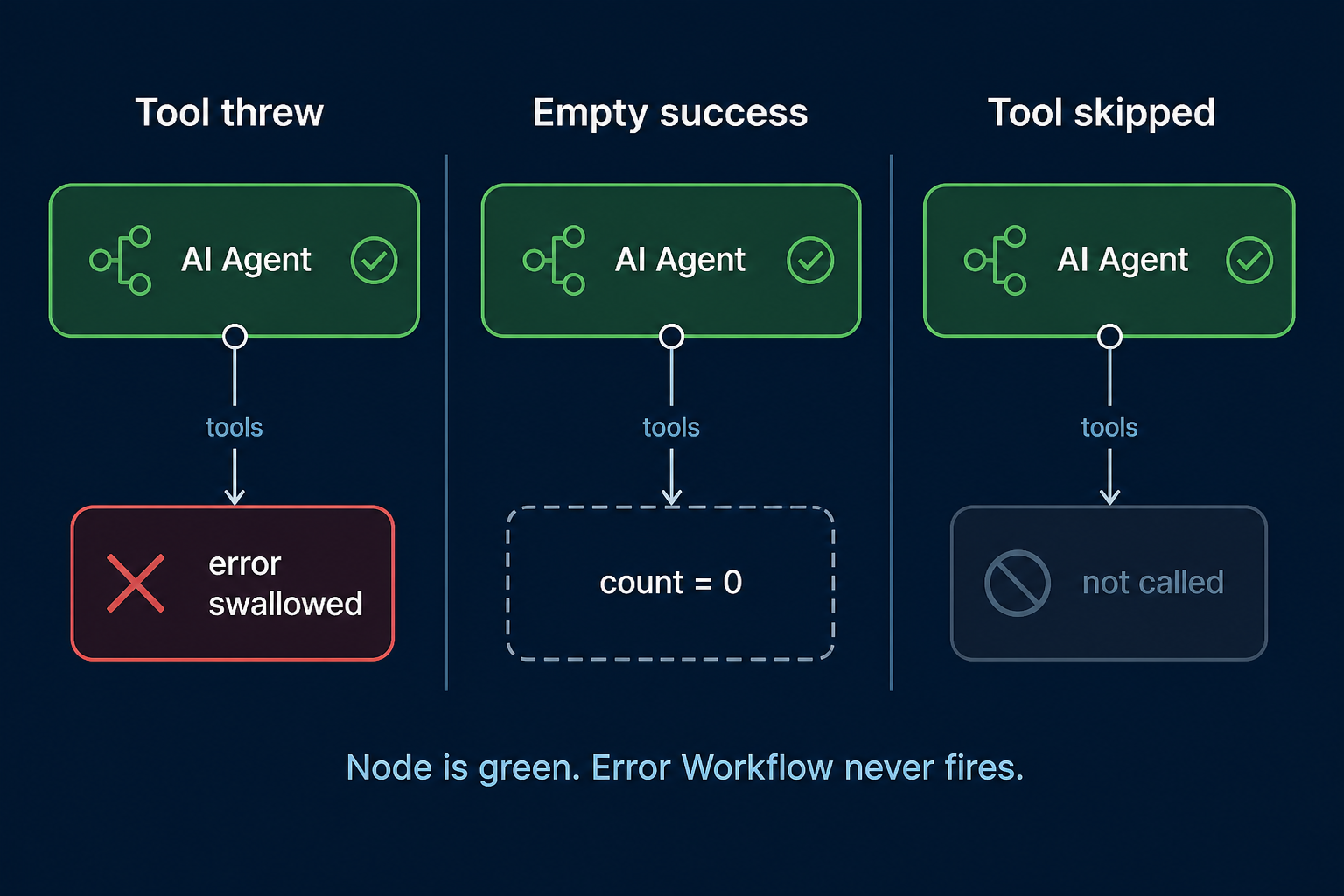
n8n counts a failed node. An AI Agent often stays green when a tool fails. The agent treats that error as reasoning, not as an execution error. Your Error Workflow never starts.
That is the case the official Error Trigger docs do not cover. See the community thread. The Error Trigger also does not run when you click Execute workflow. It only runs on automatic, production executions.
You need n8n Cloud or a self-hosted instance to run any of this. That n8n link is a sponsored affiliate link.
The failure official Error Trigger docs do not cover
A green AI Agent is a finished node. A swallowed tool error is not a failed execution, so the official Error Workflow does not start.
Continue (using error output) on the Agent does not close that gap. Cloudrocket said this on August 8, 2026: that setting only branches when the Agent node itself throws. It does not convert a consumed tool error into a failed run.
Three different greens
A green Agent is not one bug. It is three different states.
1. The tool threw. The agent swallowed it. The tool hit a 4xx, a 5xx, a timeout, or a Code exception. The Agent kept going. The node is green.
2. The tool succeeded with empty data. The call worked. It returned nothing useful. Adam13y (August 3, 2026) saw a retrieval tool return success and an empty array. A success flag is not enough. You also need a count.
3. The agent skipped the tool. Ananya (August 2, 2026): the prompt said to use the tool, the model answered from its own weights, and intermediateSteps is empty.
Do not look for one checkbox that fixes all three. Make tool output inspectable, then assert after the Agent.
Build the shared Error Workflow first
Build the baseline anyway. You still need it for real node failures, and again when you throw on purpose later.
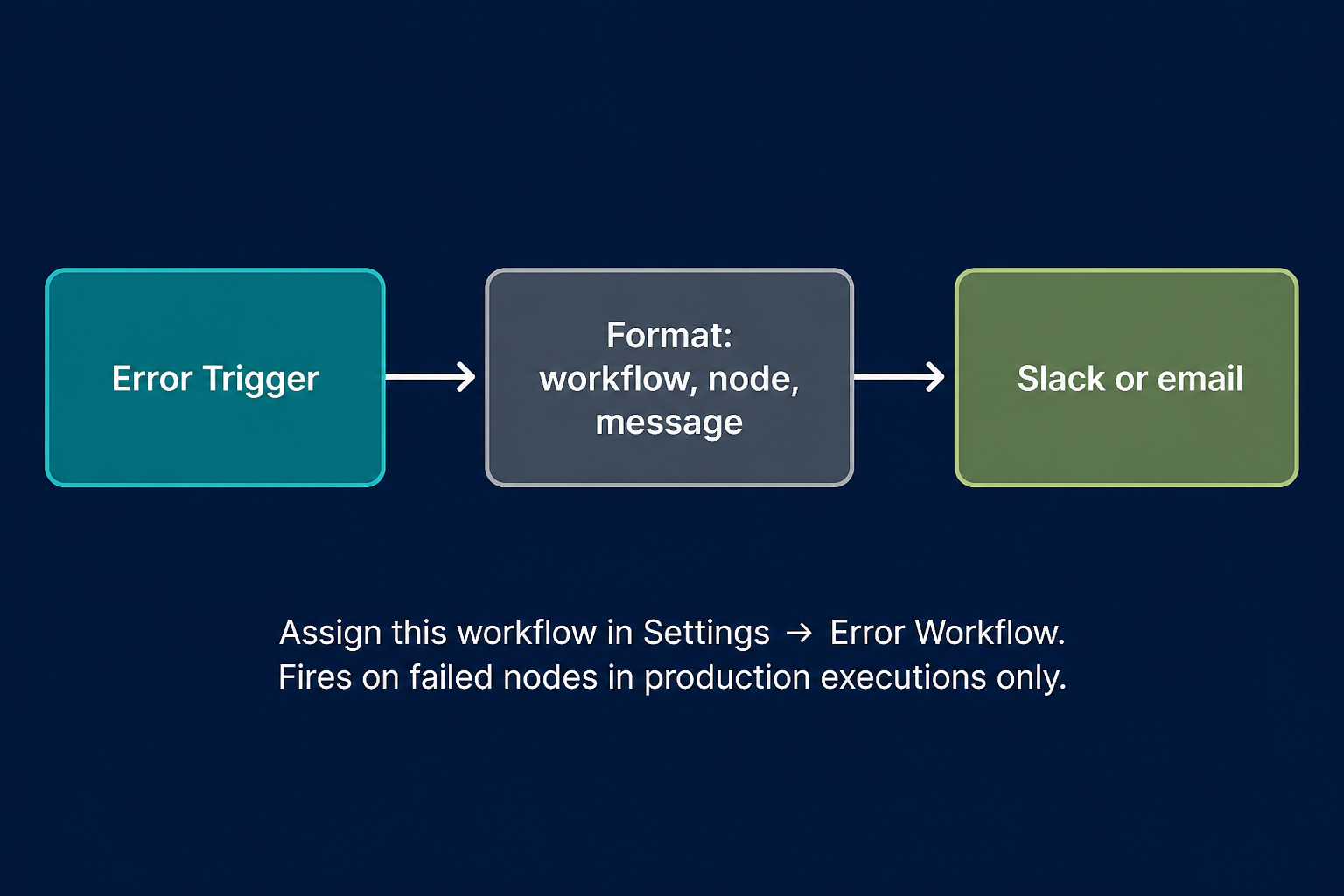
Official pattern, from the Error Trigger docs and the n8n blog on creating error workflows:
- Create a new workflow.
- Add Error Trigger as the first node.
- Format
workflow.name,execution.url,execution.lastNodeExecuted, andexecution.error.message. - Send that to Slack or email.
- Save. You do not have to publish a workflow that starts with Error Trigger.
- In each production workflow, open Options → Settings and assign this workflow under Error Workflow.
If n8n saved the run, the payload includes execution id, URL, last node, and the error. A silent-green Agent will not reach this workflow yet.
Make tools return data, not crashes
Stop asking the model to report its own failure. Make every tool return a typed object.
For an HTTP Request tool, turn on Never Error under Options → Response. A 4xx or 5xx then comes back as a body the agent can read.
For Code tools and sub-workflow tools, catch inside the tool and return:
{ "status": "ok" | "empty" | "degraded" | "failed", "count": 0, "data": ... }or, on failure:
{ "status": "failed", "count": 0, "error": "missing email field" }Do not throw from the tool if you want the agent to retry. In the system prompt: if status is failed, fix the input and retry twice. If status is empty, say you do not have that record.
success: true with no count hides the empty-success case. Always return count for collection tools.
Assert after the Agent, then throw only at a destructive boundary
After the Agent, add an IF node or a Code node. Inspect the contract yourself.
Check at least:
- any tool result with
status === "failed" - a required tool missing from
intermediateSteps count === 0when the next node is about to write, send, or charge
If the contract is broken and the next step is destructive, throw. Use a Code throw or a Stop And Error node. That failed node is what lets the Error Workflow fire.
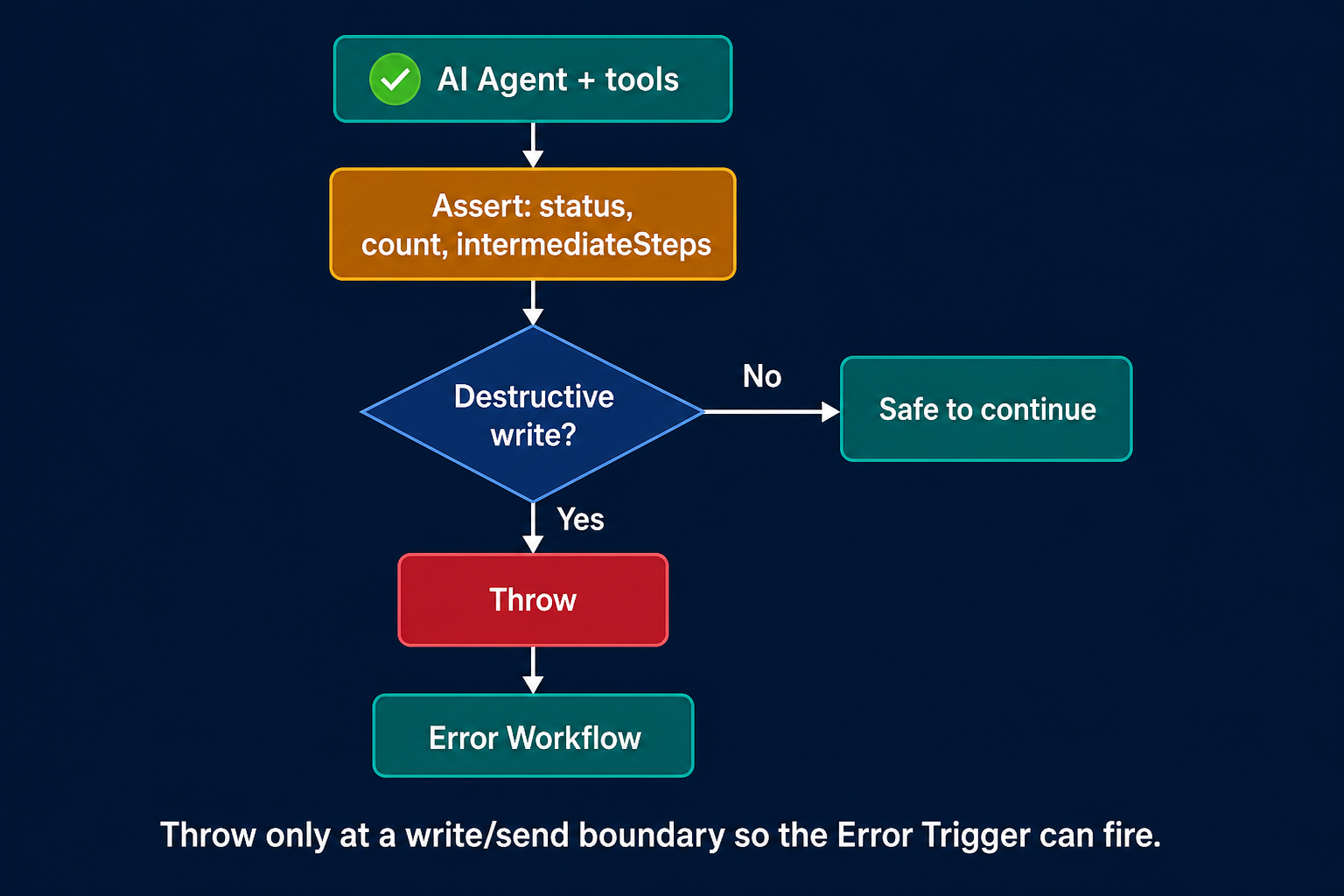
Do not throw on every empty retrieval. Empty is often valid. Watch the empty rate, or run a canary on a fact that exists only in your corpus.
Throwing marks the run failed. n8n may retry it. Make the side effect safe to run twice: an idempotency key on outbound POSTs, an upsert on a business key, or claim-the-row before send. Put the assert immediately before every write, send, and payment.
Webhook + AI: ack first, then run the agent
If the workflow starts on a Webhook, do not put the Agent on the HTTP critical path.
Receive the request. Store or queue the payload. Return 200 or 202 first. Let a second workflow run the Agent.
The caller is not waiting on model latency. A timeout retry does not fire the Agent twice. The same split applies to chat or messaging triggers. Ack, then work. This is not a WhatsApp setup guide.
What this is not
Three n8n products share the word "agent." This post is only about the first.
- The AI Agent node is a runtime step inside one workflow. That is the green box here.
- The Agents tab is a different object you set up once and reuse. Preview on n8n Cloud from 2.32.3. See the official Agents announcement.
- The AI Assistant builds workflows. It does not run your tools in production.
Scaffold the two graphs on the workflow you have open
n8nChat does not replace the Error Trigger. It does not host n8n. It is a Chrome and Firefox extension. You open your own n8n canvas, type a prompt, and it places a graph there. Bring your own OpenAI or Gemini key.
The open workflow is the context. n8nChat can see the graph you already have open on the official n8n canvas. Ask what is wrong with a node. Tell it to fix the graph. That is an edit of the open workflow, not a hosted n8n debugger, and it does not replace the Error Trigger. See the n8n workflow builder.
On the production workflow you have open:
> Why did this AI Agent stay green when the HTTP tool failed? Add an assert after the Agent that throws if status is failed or count is 0.
> This node looks fine but the tool returned empty data. Add a check on intermediateSteps and throw before the Slack send.
If you still need the two graphs from scratch:
> Error Trigger, then format execution URL, workflow name, last node, and error message, then Slack (or email).
> Webhook (or Chat Trigger), then AI Agent with an HTTP Request tool and a Code tool that always returns {status, count, data}, then IF on failed or empty, then throw before any Slack or Sheets write.
Then review every node, add your own credentials, assign the Error Workflow under Settings, and test with a production execution. Install from the Chrome Web Store or Firefox Add-ons.
Frequently asked questions
Why did my n8n Error Workflow not run when I clicked Execute?
The Error Trigger does not run on a manual Execute workflow click. It only runs on automatic, production executions. That is official n8n behavior, not an AI Agent quirk.
Why is the AI Agent node green when a tool failed?
Error Workflows fire when a node fails. The AI Agent node often stays green when a tool fails because tool errors are treated as agent reasoning, not as an execution error.
Does Continue (using error output) on the AI Agent catch tool failures?
No. That setting only opens an error branch when the Agent node itself throws. It does not turn a tool error the agent already consumed into a failed execution.
Should I throw when a tool returns empty data?
Not always. Empty can be a real answer. Throw at a destructive boundary, when empty or failed data is about to feed a write, send, or payment. Monitor empty rates separately.
Do I need queue mode to use an Error Workflow?
No. Queue mode is an ops topic. The Error Trigger pattern works on a normal Cloud or self-hosted instance.
What is the difference between the AI Agent node, the Agents tab, and the AI Assistant?
The AI Agent node is a runtime step inside one workflow. The Agents tab (Preview from 2.32.3) is a separate object you set up once. The AI Assistant builds workflows. This post is about the AI Agent node.
Can n8nChat replace the Error Trigger?
No. n8nChat is a Chrome and Firefox extension that places a graph on the official n8n canvas. It does not host n8n and it does not fire when a node fails. Use it to scaffold the two graphs, then assign the Error Workflow in Settings.
Build workflows with the n8nChat Chrome extension. Also see n8n AI and the n8n workflow builder.